Your wrist aches by 3pm. You’ve tried the gel wrist rest from the supermarket. It didn’t do much.
If you’re reading this, chances are a normal mouse has started to feel like a small, slow-motion injury. That claw grip, the flat wrist angle, the same twenty tendons doing the same twist for eight hours a day. It adds up.
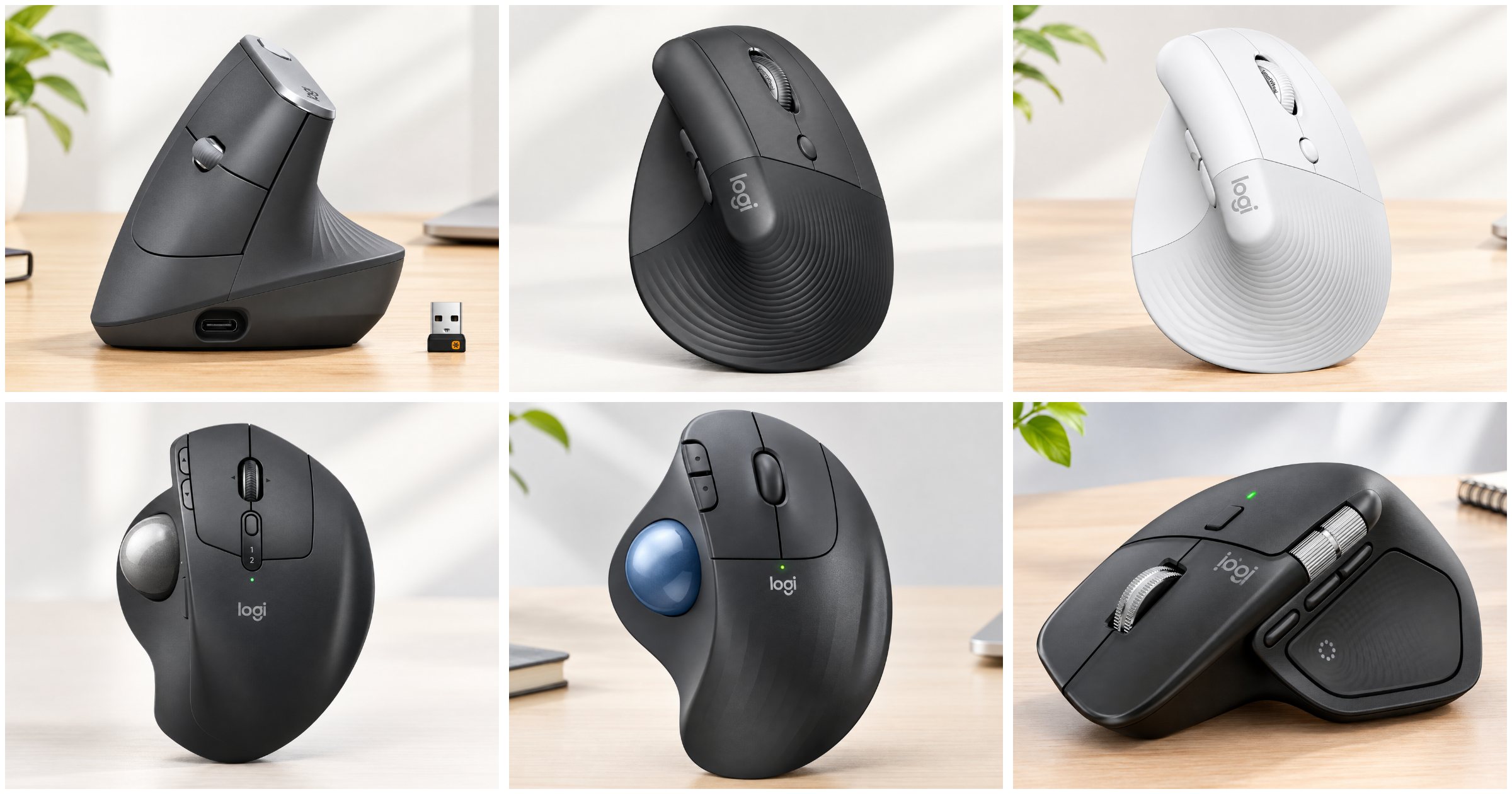
The good news is that Logitech has spent the last decade building an entire ergonomic mouse range around exactly this problem, and not all of it costs a fortune. Some options here sit at proper budget-friendly prices, others are a genuine investment piece for anyone who spends their whole working life gripping a mouse. We’ve broken down six of the current UK range: three vertical mice, two trackballs and one flagship all-rounder, so you can match the shape to your hand, your job and your desk setup rather than just buying whatever’s cheapest on the page.
What to Actually Expect From an Ergonomic Logitech Mouse
Let’s set some honest expectations before the reviews, because ergonomic mice get oversold constantly.
None of these six mice will fix an existing repetitive strain injury on their own. What they can do is change the angle your forearm sits at, reduce how far your fingers travel to click, and cut down the twisting motion (called pronation) that standard mice force on your wrist. That’s a mechanical change, not a medical one.
Build materials matter more than most buying guides admit. Every mouse here uses an ABS plastic shell, not metal, because metal would add weight in exactly the wrong places for an all-day grip. The trade-off is that plastic can develop a slight shine on the palm rest after a year or two of daily use, particularly on darker finishes. It’s cosmetic, not structural, but worth knowing before you unbox one expecting a tank.
Sensor technology across this range is solid rather than flashy. These aren’t gaming mice chasing 20,000+ DPI numbers. Logitech has tuned the DPI ranges here for precision at desk-appropriate speeds, which is exactly what office and creative work actually needs. Don’t judge these against a gaming mouse spec sheet, it’s the wrong comparison.
Finally, every single mouse on this list is right-hand dominant in its default form, with only the Lift offering a genuine left-handed version. If you’re left-handed, that narrows your shortlist immediately, and we’ll flag it again where relevant.
Quick Comparison Table
| Product | Product Image | Best For | Key Feature | Core Spec | Buy Now |
|---|---|---|---|---|---|
| Logitech MX Vertical | 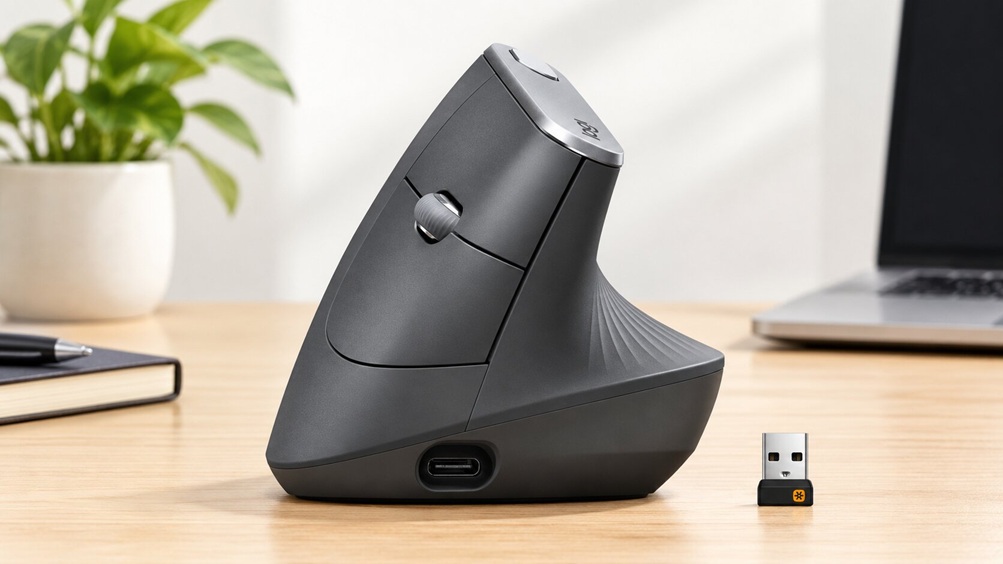 | All-round wrist relief | 57° handshake angle | Up to 4,000 DPI | 🛒Check Price on Amazon |
| Logitech Lift | 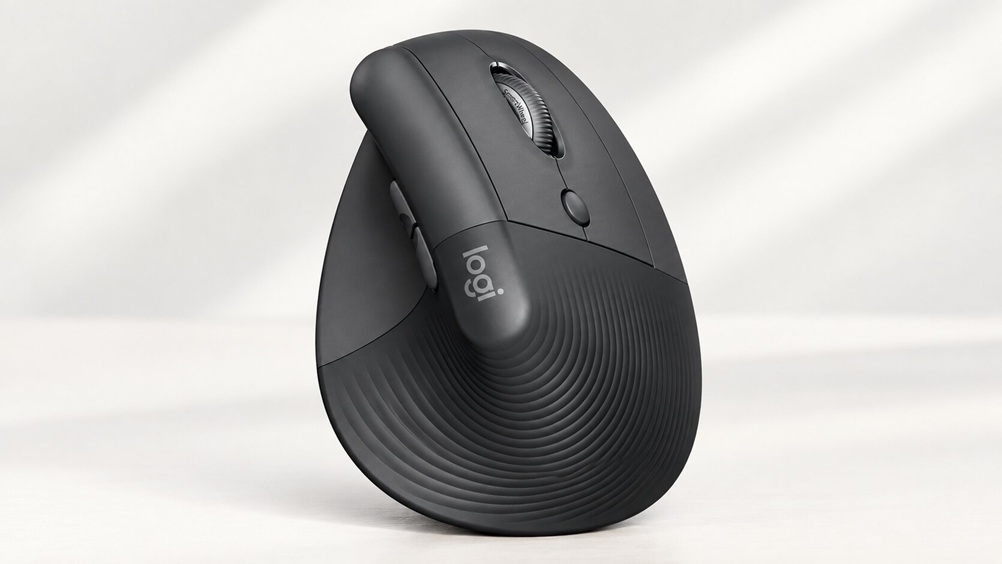 | Small-medium hands, quiet offices | Silent clicks + left-hand option | AA battery, 24-month life | 🛒Check Price on Amazon |
| Logitech Lift for Mac | 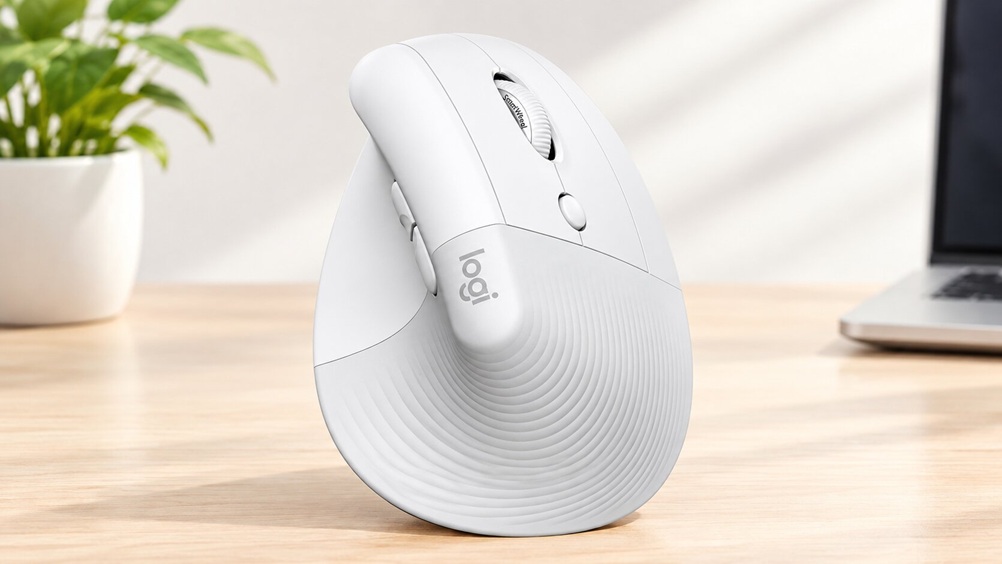 | Dedicated Mac/iPad users | Native macOS gesture tuning | 54% recycled plastic | 🛒Check Price on Amazon |
| Logitech MX Ergo S | 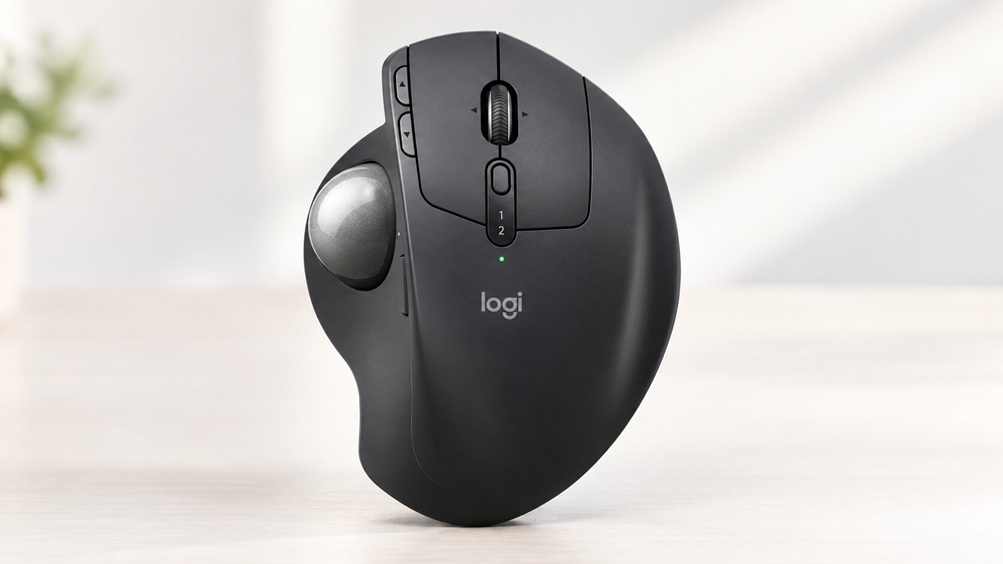 | Forearm strain, limited desk space | 20° adjustable tilt hinge | 512–2,048 DPI | 🛒Check Price on Amazon |
| Logitech ERGO M575S | 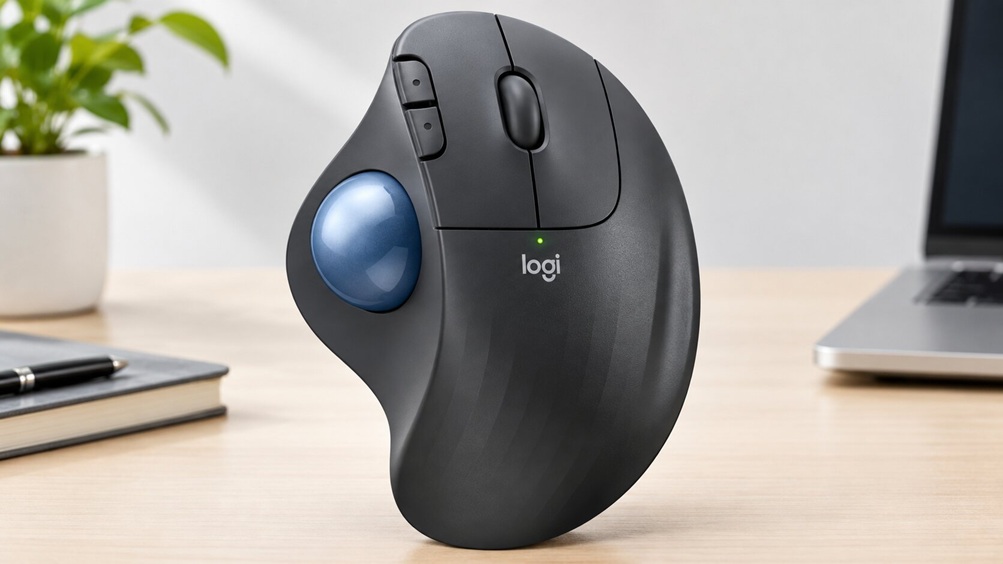 | Budget trackball buyers | Broad OS compatibility | Up to 2,000 DPI | 🛒Check Price on Amazon |
| Logitech MX Master 4 | 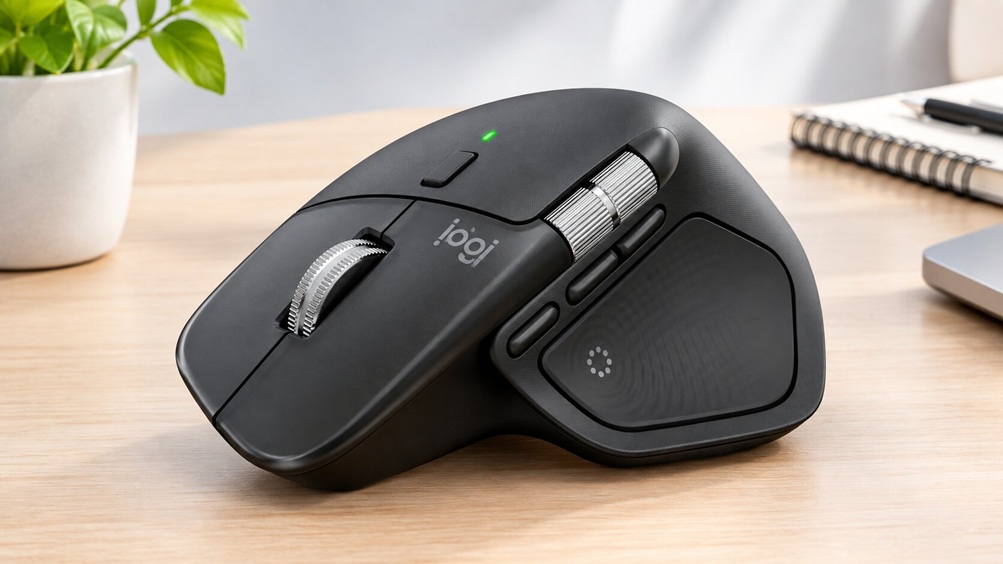 | Power users, multi-device pros | MagSpeed scroll + haptics | Up to 8,000 DPI | 🛒Check Price on Amazon |
1. Logitech MX Vertical Ergonomic Mouse
Product Overview
The MX Vertical is the mouse most people picture when they hear “ergonomic mouse.” It sits your hand at a 57-degree angle, roughly the position your arm falls into naturally when you go to shake someone’s hand. That’s not a marketing gimmick, it’s the whole design principle behind why vertical mice exist at all.
It’s built for right-handed users, runs on either Bluetooth or Logitech’s 2.4GHz Unifying Receiver, and charges via USB-C with genuinely fast top-ups.
Real-World Performance & Comfort
Across an eight-hour shift, the difference this mouse makes is in the forearm, not the fingers. A flat mouse forces constant, low-level pronation, your forearm bones staying twisted for hours. The MX Vertical removes almost all of that twist by keeping your palm upright.
The trade-off is a learning curve. Cursor control feels loose and slightly imprecise for the first few days, because your brain has to relearn how vertical hand movement maps to horizontal screen movement. Stick with it past day three or four and it becomes second nature.
It’s also a genuinely heavy mouse compared with a standard optical mouse. For some people that adds stability. For anyone with existing wrist weakness, the extra mass can actually work against you during the adjustment period.
Ergonomic & Wrist Benefits
The handshake angle is the headline feature, and it does reduce load on the muscles that run from your elbow to your wrist, the ones responsible for most repetitive strain complaints. Logitech’s own research points to roughly a 10% reduction in forearm muscle strain compared with a standard mouse, which lines up with what you’d expect mechanically from removing that constant twist.
Shoulder tension is a secondary win here. Because the arm sits in a more neutral position, there’s less compensatory tightening through the shoulder to keep the wrist stable.
Build Quality & Material Durability
The textured rubber grip on the thumb rest is a genuine step up from the smooth plastic Logitech uses on cheaper models. It holds up well against sweat and daily handling, though like most rubberised coatings it can start to feel slightly tacky after a couple of years, particularly in warmer offices without air conditioning.
The four programmable buttons use standard mechanical switches rather than anything exotic, and they hold their click feel consistently over long-term use.
Why We Recommend It
If your main complaint is forearm ache rather than finger fatigue, this is the most direct fix in the entire Logitech range. It’s the reference point every other vertical mouse on this list gets compared against.
Pros and Cons
Pros:
- Meaningful, measurable reduction in forearm strain
- Textured grip stays comfortable over long sessions
- USB-C fast charging (a full charge lasts months, and one minute buys roughly three hours)
- Works across Windows, macOS, iPadOS and Linux
- Reliable tracking on most desk surfaces, including some fabric mousepads
Cons:
- Right-hand only, no left-handed version exists
- Sits at the higher end of the price range for a vertical mouse
- Noticeable adjustment period for anyone new to vertical mice
- Weight and bulk can feel excessive for smaller hands
Who This Is NOT For
Left-handed users are automatically excluded, and anyone with small hands may find the body too broad to grip comfortably without their fingers overreaching.
| Feature | Details |
|---|---|
| Design | Vertical, right-handed, 57° angle |
| Connectivity | Bluetooth or 2.4GHz USB Unifying Receiver |
| DPI Range | Up to 4,000 (adjustable) |
| Buttons | 4 customisable |
| Battery | USB-C, up to 4 months per charge |
| Compatibility | Windows, macOS, iPadOS, Linux |
2. Logitech Lift Vertical Ergonomic Mouse
Product Overview
The Lift is Logitech’s more compact, quieter take on the vertical mouse formula, and it’s the only mouse in this entire lineup that comes in a proper left-handed version. That alone makes it worth a look for a big chunk of readers the MX Vertical simply can’t serve.
Real-World Performance & Comfort
Where the MX Vertical leans into a bigger, more substantial grip, the Lift is built for hands that find that bulk uncomfortable. Over a working day, the smaller footprint means less finger spread, which matters if you’ve got smaller hands or shorter fingers.
The quiet clicks are the standout feature in open-plan offices. You genuinely can’t hear it across a desk, which sounds trivial until you’re the person clicking away next to someone on a video call.
Ergonomic & Wrist Benefits
It carries the same 57-degree-style handshake positioning as its bigger sibling, just scaled down. The wrist stays neutral, the forearm doesn’t twist, and because the mouse is lighter than the MX Vertical, there’s less strain from simply lifting and repositioning it throughout the day.
Build Quality & Material Durability
This is where the AA battery becomes relevant to durability, not just convenience. No rechargeable cell means no battery degradation over the years, which is the one component that eventually wears out on rechargeable mice. You’ll be replacing a cheap AA long before you’d ever need to replace this mouse.
The scroll wheel does feel a notch below the MX Vertical’s in terms of resistance and precision, a fair trade given the price gap between the two.
Why We Recommend It
For open-plan offices, shared workspaces, or anyone with small to medium hands who found the MX Vertical too bulky, the Lift solves both problems at once without asking you to spend more.
Pros and Cons
Pros:
- Genuinely silent clicks, ideal for shared or open offices
- Left-handed version available, rare in this category
- Two years of battery life from a single AA cell
- Ergo-certified design at a more accessible price point
- Comfortable for smaller hands where the MX Vertical isn’t
Cons:
- No rechargeable battery, so you’re relying on AA cells long-term
- Not well suited to larger hands
- Scroll wheel feels less premium under the finger
- Fewer DPI customisation steps than the MX Vertical
Who This Is NOT For
Anyone with large hands who needs a full palm rest will find this too small, and gamers or high-precision creative users wanting granular DPI control should look elsewhere.
| Feature | Details |
|---|---|
| Design | Vertical, compact, small to medium hands |
| Connectivity | Bluetooth or Logi Bolt USB receiver |
| DPI Range | Up to 4,000 |
| Buttons | 4 quiet-click buttons |
| Battery | AA, up to 24 months |
| Compatibility | Windows, macOS, iPadOS |
3. Logitech Lift for Mac Vertical Ergonomic Mouse
Product Overview
This is effectively the same mouse as the standard Lift, rebuilt from the ground up for Apple’s ecosystem. It’s Bluetooth-only, tuned specifically for macOS gestures, and finished in a white shell that actually matches an iMac or MacBook rather than looking like an accessory bought as an afterthought.
Real-World Performance & Comfort
If you live inside macOS, the shortcut mapping here genuinely changes how you work. Mission Control, app switching and desktop navigation all sit on the programmable buttons by default, tuned specifically for Apple’s gesture language rather than a generic four-button layout.
Over a full day, the SmartWheel scrolling is noticeably smoother and quieter than a standard ratchet wheel, which matters more than it sounds like once you’re scrolling through documents for hours.
Ergonomic & Wrist Benefits
Same handshake-style vertical geometry as the standard Lift, so the wrist and forearm benefits carry over directly. The lighter overall weight, combined with Bluetooth Low Energy’s lower power draw, means fewer interruptions to swap batteries or charge, which sounds unrelated to ergonomics until you realise how often people revert to a flat, painful backup mouse the moment their good one runs flat.
Build Quality & Material Durability
The 54% recycled plastic build is a genuine sustainability point, not just marketing copy, and it doesn’t compromise the feel of the shell in any noticeable way. The white finish does show hand oils and dust more visibly than darker Logitech models, so it needs a wipe-down more often to stay looking clean.
Why We Recommend It
For a Mac-only household or office, the native gesture tuning here removes the need to remap buttons yourself, something you’d have to do manually on the cross-platform Lift or MX Vertical.
Pros and Cons
Pros:
- Purpose-built for macOS gestures and shortcuts out of the box
- 54% recycled plastic construction
- Quiet SmartWheel scrolling
- Minimalist design that matches Apple hardware
- No USB dongle needed, pure Bluetooth pairing
Cons:
- Mac and iPad only, no Windows or Linux support
- Bluetooth only, so no USB receiver fallback if pairing drops
- Right-hand only, unlike the standard Lift
- No USB-C charging, relies on AA batteries
Who This Is NOT For
Windows or Linux users get no benefit here and should buy the standard Lift instead, and anyone who wants a wired dongle as backup for unreliable Bluetooth environments will find that option missing entirely.
| Feature | Details |
|---|---|
| Design | Vertical, Mac-optimised, right-handed |
| Connectivity | Bluetooth Low Energy only |
| DPI Range | Up to 4,000 |
| Buttons | 4 customisable (macOS shortcuts) |
| Battery | AA, up to 24 months |
| Compatibility | macOS, iPadOS, MacBook, iMac, iPad |
| Sustainability | 54% recycled plastic |
4. Logitech MX Ergo S Advanced Wireless Trackball Mouse
Product Overview
The MX Ergo S takes a completely different approach to ergonomics. Instead of tilting the whole hand vertically, it removes the need to move your arm at all. Your thumb rolls the ball, the rest of your hand stays anchored on the desk.
Real-World Performance & Comfort
This is the mouse to consider if a vertical design never solved your problem, because the pain was coming from arm movement rather than wrist rotation. Across a long shift, not sweeping your whole forearm back and forth to move a cursor across two monitors is a bigger relief than people expect until they try it.
The adjustable 20-degree hinge is the feature that separates this from a basic trackball. Flat, it feels like a standard desktop trackball. Tilted, it pushes the wrist into a more neutral rotation, similar in principle to what the vertical mice achieve through a different mechanism.
Ergonomic & Wrist Benefits
Logitech cites internal testing showing the 20-degree tilt cuts forearm strain by around 27% compared with a flat trackball position, and the mechanism behind that claim holds up: less forearm rotation under sustained load is exactly what reduces the kind of fatigue that builds into genuine strain injuries.
Because the whole hand stays stationary, there’s also a shoulder benefit rarely mentioned in trackball reviews. No reaching, no repositioning, which matters enormously for anyone working across a dual-monitor setup.
Build Quality & Material Durability
The trackball itself is a precision component, and it does need occasional cleaning. Dust and skin oil build up around the ball over months of use, and if you skip cleaning it, tracking gets noticeably less smooth. It’s a five-minute job with a cloth, not a serious maintenance burden, but it’s the one piece of upkeep this style of mouse demands that a standard mouse doesn’t.
Button feel is excellent here, roughly 80% quieter than a standard mouse click according to Logitech’s own measurements, and the six programmable buttons all use durable switches rated for extended daily use.
Why We Recommend It
For anyone whose strain comes from repetitive arm movement rather than wrist angle, this solves a different problem than every vertical mouse on this list, and it does it well.
Pros and Cons
Pros:
- 20° tilt meaningfully reduces forearm strain
- Exceptionally quiet clicks for shared spaces
- Connects to two devices simultaneously
- Fast USB-C charging with a long runtime per charge
- Dedicated precision mode for detailed creative work
Cons:
- Right-hand only
- Lower maximum DPI than traditional mice, which can feel restrictive for high-speed tasks
- Trackball needs periodic cleaning to stay accurate
- Larger footprint, not something you’d want to travel with
- Sits at the premium end of the price range
Who This Is NOT For
Anyone doing fast-paced gaming or high-DPI design work will find the ceiling here limiting, and if you travel between desks regularly, the size and weight make it a poor portable companion.
| Feature | Details |
|---|---|
| Design | Trackball, thumb-operated, right-handed |
| Connectivity | Bluetooth or encrypted USB dongle |
| DPI Range | 512–2,048 (adjustable) |
| Buttons | 6 programmable |
| Battery | USB-C quick charge, up to 120 days |
| Tilt | 0° or 20° adjustable hinge |
| Compatibility | Windows, macOS |
5. Logitech ERGO M575S Wireless Trackball Mouse
Product Overview
The M575S is the entry point into trackball ergonomics, stripping out the tilt hinge and premium finish of the MX Ergo S while keeping the core thumb-operated design intact.
Real-World Performance & Comfort
Don’t let the lower price fool you into expecting a compromised experience. The palm rest here is genuinely comfortable for long sessions, and the fundamental benefit of a trackball, no arm sweeping, is exactly the same as its pricier sibling.
Where it clearly shows its budget positioning is precision at speed. Without the tilt adjustment and with a lower DPI ceiling, fast, sweeping cursor movements across large monitors feel slightly less controlled than on the MX Ergo S.
Ergonomic & Wrist Benefits
The core ergonomic principle carries over fully: your hand stays anchored, your thumb does the work, and you avoid the repetitive shoulder and elbow movement that a standard mouse demands. What you lose compared with the Ergo S is the tilt option, so the wrist sits in a flatter, less neutral position than it would with the hinge engaged.
Build Quality & Material Durability
This is a genuinely well-built budget device. The AA battery setup means, like the Lift, you’re never dealing with battery degradation over time. Broad OS support, including ChromeOS and Linux, makes it a smart pick for mixed-device households or offices running non-standard operating systems.
The trackball needs the same occasional cleaning as any trackball design, and the plastic shell, while solid, doesn’t have the same rubberised texture as the MX Ergo S.
Why We Recommend It
For anyone curious whether a trackball will actually work for them, without committing to the MX Ergo S price point, this is the sensible way to find out.
Pros and Cons
Pros:
- Excellent value for a trackball-style ergonomic mouse
- Works across Windows, macOS, ChromeOS and Linux
- Comfortable palm rest for extended sessions
- No large desk movements required at all
- Reliable, encrypted wireless connection
Cons:
- No rechargeable battery
- DPI ceiling of 2,000 feels limiting for larger displays
- No tilt adjustment, unlike the MX Ergo S
- Right-hand only
- Trackball requires occasional cleaning to stay accurate
Who This Is NOT For
Anyone who’s already confirmed they need the tilt hinge for wrist comfort should skip straight to the MX Ergo S, and high-DPI users working across ultra-wide monitors will find the tracking speed here restrictive.
| Feature | Details |
|---|---|
| Design | Trackball, thumb-operated, right-handed |
| Connectivity | Bluetooth or encrypted USB dongle |
| DPI Range | Up to 2,000 |
| Buttons | 5 customisable |
| Battery | AA, up to 24 months |
| Compatibility | Windows, macOS, ChromeOS, Linux |
6. Logitech MX Master 4 Ergonomic Wireless Mouse
Product Overview
The MX Master 4 isn’t vertical and isn’t a trackball, it’s a sculpted, horizontal ergonomic mouse built for people who want maximum precision and customisation without switching to an unfamiliar grip style entirely.
Real-World Performance & Comfort
The sculpted shape supports the palm through a full shift far better than a flat, symmetrical mouse ever could, with a defined thumb rest that keeps the hand from sliding during fast movement. The MagSpeed scroll wheel is the standout here: it shifts between a ratcheted, stepped scroll and a free-spinning mode automatically, which genuinely changes how effortless scrolling through long spreadsheets or documents feels.
Haptic feedback is the newest addition, giving a subtle physical response when you hit certain UI actions through the Logi Options+ software. It’s a nice touch for precision work, though it’s the kind of feature you’ll either love within a day or turn off entirely.
Ergonomic & Wrist Benefits
Because this isn’t a vertical design, the pronation reduction isn’t as dramatic as the MX Vertical or Lift. What it does instead is reduce repetitive strain from clicking and scrolling specifically, the raised ridge supports the wrist in a higher, more extended position than a flat mouse, and the reduced physical effort needed for the MagSpeed wheel and haptic-assisted clicks means less repetitive micro-strain across an eight-hour day.
If your main issue is wrist rotation, this won’t solve it as completely as a true vertical mouse. If it’s finger and scroll fatigue, this is arguably the best tool on this list for that specific problem.
Build Quality & Material Durability
This is Logitech’s flagship, and the build quality reflects it. The shell uses a more premium-feeling matte finish than the budget models, and the switches throughout are rated for heavy, extended daily use without a noticeable drop in click feel.
It’s also the heaviest mouse on this list relative to its horizontal footprint, which some users read as reassuring solidity and others find tiring to lift and reposition repeatedly.
Why We Recommend It
For professionals who switch constantly between three devices, need precise cursor control up to 8,000 DPI, and want the most customisable software experience Logitech offers, this is the ceiling of the range.
Pros and Cons
Pros:
- Best-in-class MagSpeed scroll wheel
- Haptic feedback adds a genuinely useful layer of precision
- Extensive customisation through Logi Options+
- Seamless switching across three connected devices
- Highest DPI ceiling in this entire lineup
Cons:
- The most expensive mouse in this roundup
- Right-hand only
- Noticeably heavier than the average office mouse
- Haptic feedback won’t suit every user’s preference
- Genuinely overkill if your daily tasks are basic browsing and email
Who This Is NOT For
If your job is light admin work rather than detailed creative or data-heavy tasks, you’re paying for precision and features you’ll rarely touch, and anyone whose main complaint is wrist rotation specifically will get more targeted relief from a true vertical mouse instead.
| Feature | Details |
|---|---|
| Design | Sculpted, right-hand ergonomic |
| Connectivity | Bluetooth or Logi Bolt USB receiver |
| DPI Range | Up to 8,000 |
| Buttons | Multiple, customisable via Logi Options+ |
| Battery | USB-C, up to 70 days |
| Special Features | Haptic feedback, MagSpeed scroll wheel, gesture controls |
| Compatibility | Windows, macOS |
Buying Guide: What Actually Matters When Choosing an Ergonomic Logitech Mouse
Skip past the marketing copy on most product pages and there are really only five things worth checking before you buy.
Hand angle and wrist rotation. Vertical mice (MX Vertical, Lift, Lift for Mac) target pronation, the twisting motion in your forearm. Trackballs (MX Ergo S, ERGO M575S) target arm movement instead. If you’re not sure which is causing your discomfort, try resting your hand flat on the desk, palm down, then rotate it upright like you’re about to shake hands. If that upright position feels immediately more relaxed, go vertical. If the relief comes from simply not moving your arm at all, go trackball.
Tilt adjustment. Only the MX Ergo S offers a genuine tilt hinge among the trackballs here. It’s a meaningful upgrade if forearm rotation is part of your discomfort, less relevant if you’re only dealing with shoulder fatigue from arm movement.
Battery type. Rechargeable USB-C (MX Vertical, MX Ergo S, MX Master 4) means faster top-ups but eventual battery degradation over several years. AA-powered models (Lift, Lift for Mac, ERGO M575S) never degrade in that way, at the cost of periodic battery swaps.
Hand size. The MX Vertical and MX Master 4 both suit medium to large hands. The Lift and Lift for Mac are built specifically for smaller grips. Trying before buying isn’t always possible online, so check the dimensions against a mouse you already own if you’re between sizes.
Software depth. If you want granular control over every button, scroll behaviour and gesture, the MX Master 4 and MX Ergo S offer the deepest customisation through Logi Options+. Budget models keep things simpler by design, which some users genuinely prefer.
Frequently Asked Questions
Do vertical mice actually reduce wrist pain, or is that just marketing? There’s a real mechanical basis behind it. Vertical mice reduce forearm pronation, the twisting motion responsible for a lot of repetitive strain discomfort. It’s not a cure for an existing injury, but as a preventative or contributing fix, the angle change is measurable and genuine.
Should I choose a vertical mouse or a trackball for carpal tunnel symptoms? It depends where your specific strain comes from. If it’s wrist rotation, a vertical mouse like the MX Vertical or Lift targets that directly. If it’s shoulder and elbow fatigue from reaching across the desk, a trackball like the MX Ergo S removes that arm movement entirely. Speak to a physiotherapist if symptoms are persistent, hardware alone won’t replace proper medical advice.
Is the Logitech Lift good enough for someone with large hands, or should I get the MX Vertical? The Lift is specifically sized for small to medium hands. If your hand comfortably spans a standard mouse with room to spare, the MX Vertical’s larger body will suit you better.
Can I use these ergonomic mice for gaming? Not really recommended. The DPI ranges here are tuned for productivity precision rather than the fast, high-sensitivity tracking competitive gaming demands, and vertical or trackball grips don’t suit rapid-fire clicking the way a standard gaming mouse does.
How long does it typically take to adjust to a vertical mouse? Most people report feeling comfortable within three to five days of consistent use. The first day or two often feels genuinely awkward, that’s normal and not a sign the mouse is wrong for you.
Do I need a tilt-adjustable trackball, or is a flat one enough? If forearm rotation is part of your discomfort, the tilt on the MX Ergo S makes a real difference. If your issue is purely about not wanting to sweep your arm across the desk, the flat ERGO M575S covers that at a lower cost.
Final Verdict
There’s no single best ergonomic Logitech mouse for everyone, because the right choice depends entirely on where your specific discomfort is coming from.
If you want the most complete wrist relief and don’t mind a short adjustment period, the MX Vertical remains the strongest all-round pick. If your hands are smaller or you work somewhere quiet, the Lift gets you nearly the same benefit for less outlay, and it’s the only option here with a proper left-handed version. Mac users specifically should go straight to the Lift for Mac rather than the standard version.
For genuine forearm and shoulder relief through a completely different mechanism, the MX Ergo S is the standout, with the ERGO M575S as a lower-cost way to test whether trackballs suit you before committing further. And if your priority is raw precision and cross-device flexibility rather than maximum ergonomic correction, the MX Master 4 sits at the top of the range for good reason.
Whichever you land on, give it a proper week before judging it. Every mouse on this list asks your hand to unlearn habits built over years, and that never happens on day one.
Related Reading
Sorting out your mouse is only one piece of a properly ergonomic desk setup. If you’re still working at a fixed-height desk, our guide to the best ergonomic standing desks in the UK covers what actually matters when choosing one. And if neck and shoulder tension is part of the picture too, particularly if it follows you into bed, take a look at our breakdown of the best ergonomic pillows in the UK.
As an Amazon Associate, ergosetuplab.co.uk earns from qualifying purchases made through links on this page. This doesn’t affect the price you pay.